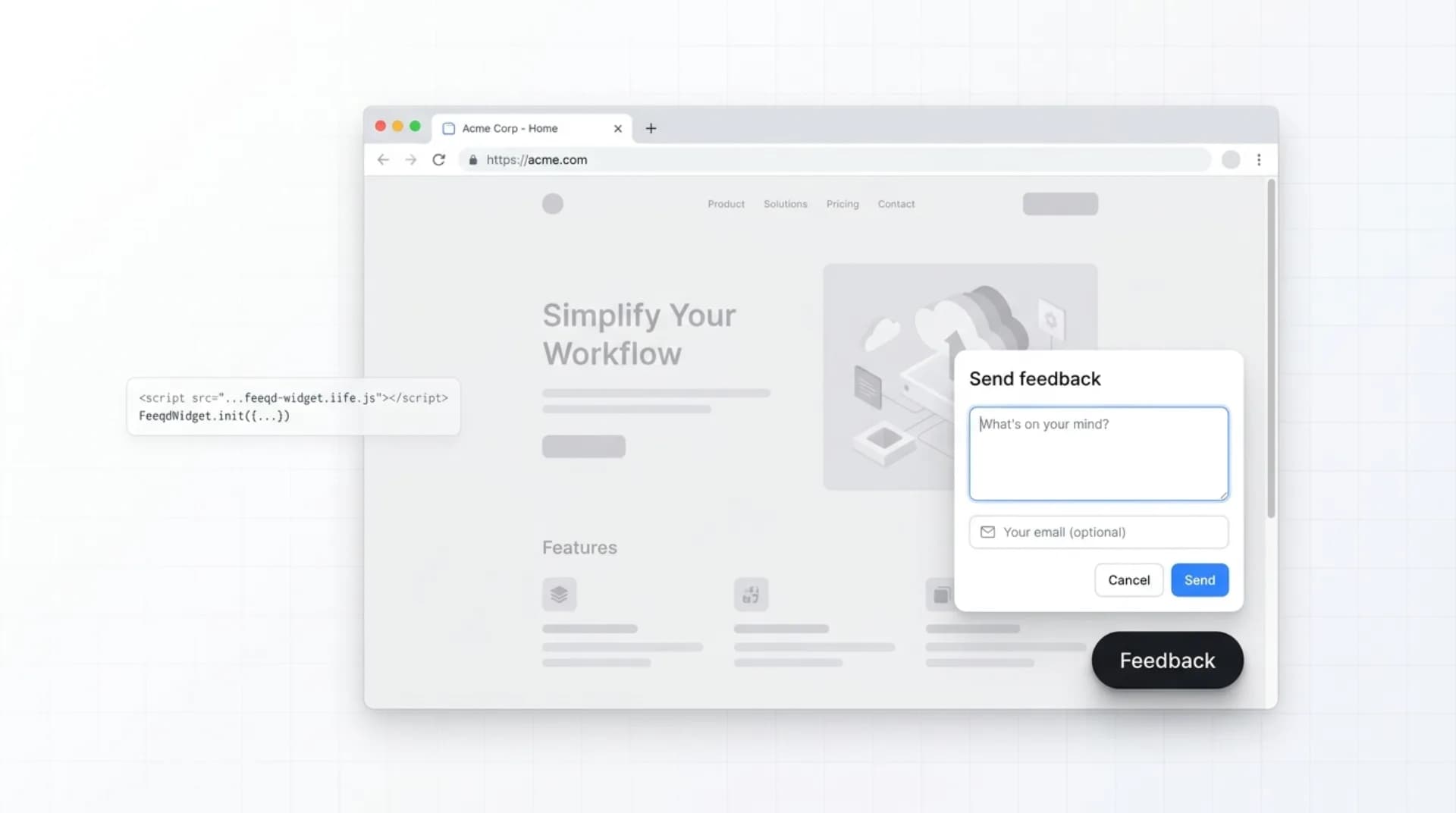
Most "website feedback button" guides force a choice: either copy a snippet from a blog post and build everything yourself, or sign up for a SaaS that charges per seat for a button in the corner. Neither solves the real problem, which is getting feedback from the right page at the right time without asking users to leave.
This guide covers both paths. You'll see a working DIY website feedback button you can paste today, the case for using an embeddable widget instead, where to place the button so people actually click it, and five feedback button tools worth comparing.
I've built and maintained Feeqd's feedback widget for two years (18KB, floating button, async load), so the trade-offs in this post are the ones I actually hit.
What Is a Website Feedback Button?
A website feedback button is a small, always-visible UI element (usually a floating button in the bottom-right corner or a side tab) that lets visitors submit feedback without leaving the page. Clicking it opens a form, modal, or slide-in panel where the user can report a bug, suggest a feature, or share a reaction.
Common types: floating action buttons, side tabs, emoji bars, thumbs up/down pairs, and annotated screenshot buttons.
Benefits: higher response rates than email or surveys, page-level context attached to each submission, and a continuous feedback signal instead of scheduled survey spikes.
The button has three properties that distinguish it from a contact form or a survey popup:
- Always visible. It stays on the page across navigation.
- Non-intrusive. It doesn't interrupt. It waits for the user.
- In-context. The feedback is attached to the exact page the user was looking at.
A field study review by the Nielsen Norman Group shows that feedback captured in-context, where the problem actually happens, is more actionable than retrospective channels like email, standalone portals, or quarterly surveys. The button exists because the friction of "find support, write email, describe problem, hit send" loses most of the feedback you'd otherwise collect.
Where to Place a Feedback Button on a Website
Placement decides whether the button works. The consensus across major feedback tools is the bottom-right corner: out of the way, findable, and in the zone where users expect secondary actions (Intercom chat, cookie banners, help widgets).
Three placement options and when each one fits:
- Bottom-right floating button. The default. Works on 90% of websites and apps. Use when you want ongoing feedback collection across the whole product. Keep it 24px from the bottom and right edges so it clears iOS safe-area insets and doesn't collide with other corner widgets like Intercom chat.
- Right-edge side tab. A vertical tab fixed to the right edge that slides out when clicked. Use for heavy-content pages (docs, pricing, long landing pages) where a round button feels out of place.
- Inline button on specific pages. A button placed directly inside the page layout, not fixed. Use for one-off moments: "How was this article?" at the end of a doc page, or "Rate your onboarding" after a signup flow.
Placements that usually fail: top-right (collides with user menus), bottom-left (weird on mobile), center overlays (intrusive), and buttons that disappear on scroll. Bottom-right persistent is the one to start with.
Option 1: DIY Website Feedback Button (HTML, CSS, and a Form)
If you control the site and can post form submissions somewhere (a Google Form, a webhook, your own API), you can ship a feedback button in the next 15 minutes with nothing but HTML and CSS. Here's a complete working version.
<!-- Floating feedback button -->
<button id="feedback-btn" aria-label="Open feedback form">
  Feedback
</button>

<!-- Native HTML <dialog>: no dependencies, handles focus trap and Escape-to-close automatically -->
<dialog id="feedback-dialog">
  <form method="dialog" id="feedback-form">
    <h2>Send feedback</h2>
    <label>
      What's on your mind?
      <textarea name="message" rows="4" required></textarea>
    </label>
    <label>
      Email (optional)
      <input type="email" name="email" />
    </label>
    <div class="actions">
      <button type="button" id="feedback-close">Cancel</button>
      <button type="submit">Send</button>
    </div>
  </form>
</dialog>

<style>
  #feedback-btn {
    position: fixed;
    bottom: 24px;
    right: 24px;
    padding: 12px 20px;
    border-radius: 9999px;
    background: #111;
    color: #fff;
    border: 0;
    font: 500 14px system-ui;
    box-shadow: 0 4px 12px rgba(0,0,0,0.15);
    cursor: pointer;
    z-index: 9999;
  }
  #feedback-dialog {
    border: 0;
    border-radius: 12px;
    padding: 24px;
    max-width: 420px;
    width: 90vw;
    box-shadow: 0 20px 50px rgba(0,0,0,0.2);
  }
  #feedback-dialog textarea,
  #feedback-dialog input {
    width: 100%;
    padding: 8px 12px;
    border: 1px solid #ddd;
    border-radius: 6px;
    font: 14px system-ui;
  }
  #feedback-dialog .actions {
    display: flex;
    justify-content: flex-end;
    gap: 8px;
    margin-top: 16px;
  }
</style>

<script>
  const btn = document.getElementById('feedback-btn');
  const dialog = document.getElementById('feedback-dialog');
  const close = document.getElementById('feedback-close');
  const form = document.getElementById('feedback-form');

  btn.addEventListener('click', () => dialog.showModal());
  close.addEventListener('click', () => dialog.close());

  form.addEventListener('submit', async (e) => {
    e.preventDefault();
    const data = new FormData(form);
    await fetch('/api/feedback', {
      method: 'POST',
      body: JSON.stringify({
        message: data.get('message'),
        email: data.get('email'),
        page: window.location.pathname,
      }),
      headers: { 'Content-Type': 'application/json' },
    });
    form.reset();
    dialog.close();
  });
</script>
That's a complete website feedback button. It's keyboard accessible (the native HTML <dialog> element handles focus trap and Escape-to-close), responsive, and under 2KB. The only thing left is where to send the /api/feedback POST. Options include:
- A serverless function writing to your database or a spreadsheet.
- A webhook service like Zapier or Make.
- A transactional email service that emails your support inbox.
- A feedback tool's API.
Where the DIY route breaks down: once you want voting, public roadmaps, replies, duplicate detection, segmentation, or a real inbox with status columns, you've rebuilt a feedback tool from scratch. For prototypes and personal sites, the snippet above is enough. For a product with real users, the math flips.
Option 2: Use a Feedback Widget Instead
The alternative is a pre-built feedback widget that gives you a button, a form editor, a submissions inbox, and a workflow in one package. This is what the tools in the next section do.
The trade-off is simple: with a widget, you trade code control for time. A widget install is two lines. A DIY button is 100 lines and, more importantly, zero integration with the rest of your feedback workflow.
Feeqd's widget, as one example, adds 18KB to the page, loads asynchronously (no render blocking), and ships with a drag-and-drop widget editor so non-engineers can change the form without touching code. Installing it:
<script src="https://cdn.feeqd.com/feeqd-widget.iife.js"></script>
<script>FeeqdWidget.init({ widgetId: 'your-widget-id' });</script>
Anything the user submits flows into a dashboard inbox where your team can categorize, reply, and promote the best entries to a public feature voting board or roadmap.
The short version: pick the DIY snippet if you want the button and nothing else. Pick a widget if you want the button and everything that happens after feedback comes in.
Feedback Button Examples and Types
The word "button" covers a few distinct patterns, each with different use cases:
- Round floating action button (FAB). A circle or pill in the corner. The most common type. Examples: Feeqd, Usersnap, Saber.
- Side tab. A vertical ribbon on the page edge that says "Feedback." Classic Qualtrics and UserVoice look.
- Emoji bar. Three or four emoji reactions (happy/neutral/sad) inline with a page. Good for quick sentiment on specific pages.
- Thumbs up/down pair. "Was this helpful?" at the bottom of docs. The simplest possible button form.
- Annotated screenshot button. Opens a screenshot-and-draw tool so users can circle the thing they're reporting. Marker.io and Userback specialize in this.
Which one to pick depends on the job. For ongoing product feedback, use a floating button or side tab. For article or doc feedback, use thumbs or emoji. For visual bug reports from designers or QA, use an annotated screenshot tool.
Best Website Feedback Button Tools
Five tools worth comparing if you skip the DIY route. Pricing verified April 2026.
| Tool | Button type | Free plan | Notable feature | Starting price |
|---|---|---|---|---|
| Feeqd | Floating button + modal | Yes (boards), paid widget | 18KB bundle, voting boards, public roadmap | Free / $19/mo |
| Usersnap | Floating + inline | Trial only | Screenshot annotation | $69/mo |
| Saber Feedback | Floating button | Trial only | Visual browser bug reports | $29/mo |
| Survicate | Side tab + targeted surveys | Yes (limited) | Survey targeting rules | Free / $99/mo |
| Ybug | Floating + screenshot | Trial only | Console + network capture for bug reports | $19/mo |
Feeqd is the one I build, so calibrate the recommendation accordingly. The free plan includes public feedback boards (no widget), and the paid tier unlocks the 18KB embeddable widget with a drag-and-drop form editor. It's designed for teams that want the button and the downstream workflow (inbox, voting, roadmap) in one place.
Usersnap leads on visual feedback. Users can annotate a screenshot of the page directly in the widget, which is great for design and QA teams. If most of your feedback is bug-shaped, Usersnap's annotation tools are the best in class.
Saber Feedback is the closest competitor to Usersnap with similar browser-screenshot features at a lower price. Setup is faster; customization is less deep.
Survicate is less of a feedback button and more of a survey platform that can render as a tab. If you want scheduled or triggered questions (NPS every 90 days, CSAT after a support ticket), Survicate fits. For a simple always-on feedback button, it's overbuilt.
Ybug differentiates by capturing technical context (console logs, network requests, browser info) alongside the user's text. If your feedback button is mainly for bug reports, that automatic capture saves back-and-forth.
For a deeper comparison with framework-based tool selection, see our in-app feedback tools guide and the best feedback widgets for websites post.
Best Practices for Feedback Button Placement
Five rules worth following, learned from two years of tuning Feeqd's widget and watching users interact with it:
- Stick to bottom-right on desktop. Any other position draws from the same pool of discarded UI conventions. Users look there because every other product trained them to.
- Move to bottom-center on mobile or hide entirely. Full-width mobile pages have no "corner." A small floating button at bottom-center or a page-specific inline button outperforms a tiny thumb-size circle.
- Don't show the button on landing pages or checkout. Focus matters there. Show it on in-product pages (dashboard, settings, app routes) where feedback is useful and won't cost a conversion.
- Make the form short. Three fields or fewer. Long forms are where the DIY button's conversion advantage over a polished SaaS dies.
- Close the loop. A button that collects feedback into a black hole stops working in a month. Reply. Status-update. Link to the public roadmap if you have one. The feedback-loop payoff is what keeps users clicking the button again.
FAQ
What is a feedback button?
A feedback button is a small UI element, typically a floating button or side tab, that lets visitors submit feedback on a website or app without leaving the page. It opens a form or dialog where the user can describe a bug, request a feature, or share a reaction. The distinguishing trait is being always-visible and in-context, as opposed to popups or scheduled surveys.
Where should I place the feedback button on my website?
Bottom-right corner is the industry default on desktop and the placement that performs best across products. Keep it 24px from the bottom and right edges to clear iOS safe-area insets and avoid collisions with other corner widgets like Intercom chat or cookie banners. Side tabs on the right edge work for content-heavy pages (docs, pricing, long landing pages) where a round button feels out of place. Avoid the top of the page (collides with user menus) and the center (intrusive). On mobile, where there is no true corner, move to bottom-center or use inline buttons on specific pages.
How do I add a feedback button to my website for free?
Two paths. DIY: paste the HTML/CSS snippet from this guide and route submissions to a Google Form, webhook, or your own backend. Widget: use a tool with a free plan, like Feeqd or Survicate, where the button and dashboard are included without charge. See our free website feedback tool guide for a side-by-side of the free options.
What's the difference between a feedback button and a survey?
A feedback button is reactive and always-on: the user decides when to submit. A survey is proactive and scheduled: you push a specific question at a specific moment. Most products need both. Use a button for continuous input across the product and a survey for targeted research (NPS, CSAT, post-action questions).
Can I build a feedback button with just HTML?
Yes. The snippet in this post is a complete feedback button using the native HTML <dialog> element, a bit of CSS for the floating positioning, and a JavaScript fetch to post the form. The button is keyboard accessible, responsive, and under 2KB. You still need somewhere to send the submissions (a webhook, a serverless function, a spreadsheet), but the button itself is just HTML.
Get started with Feeqd for free
Let your users tell you exactly what to build next
Collect feedback, let users vote, and ship what actually matters. All in one simple tool that takes minutes to set up.
Sign up for free