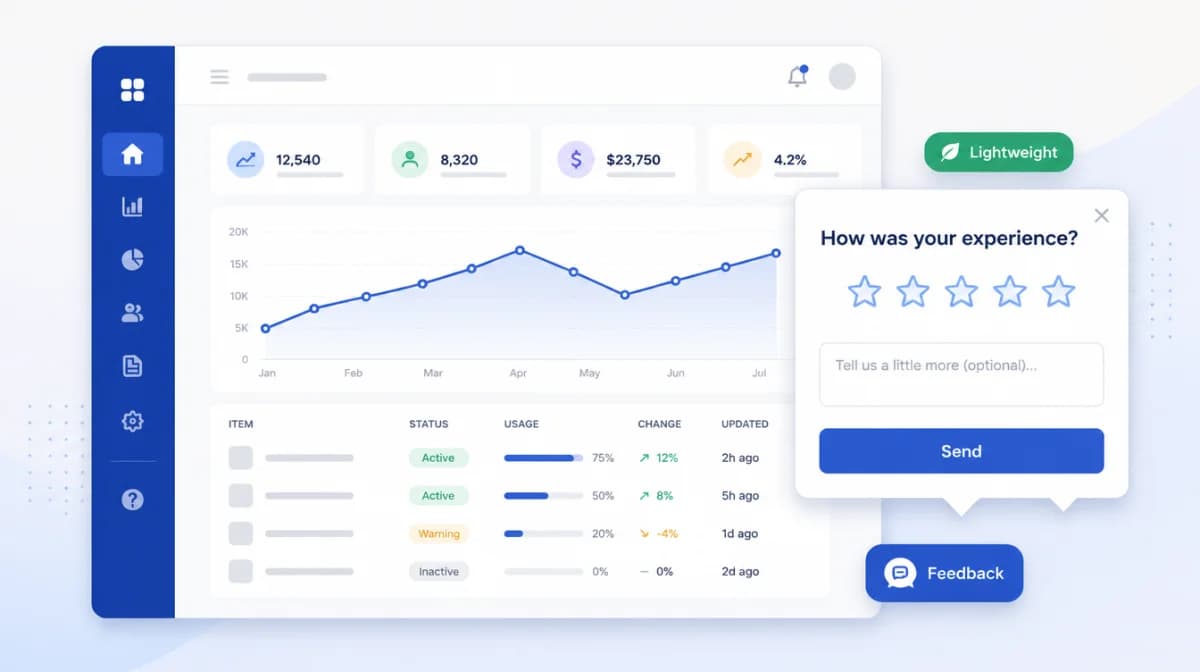
An in-app feedback widget is a small UI element embedded inside your SaaS product that lets users submit feedback without leaving the app. Done right, it captures roughly 5 to 10x more responses than email-based feedback (a range I have observed across teams using Feeqd over the last two years; absolute multipliers vary by product type and user activity), because it removes the context switch. Done wrong, it interrupts users at the worst possible moment and gets disabled by your own team within a week.
This guide is for SaaS founders and product teams picking, building, or replacing an in-app feedback widget. It covers six widget patterns mapped to specific UX moments, a decision matrix for which one fits your product, performance benchmarks, and a five-tool comparison. I run Feeqd, a feedback management tool with an 18KB widget, so I have spent the last two years watching teams pick the wrong pattern and pay for it in low response rates.
Short answer for SaaS teams: the most common right answer is a persistent floating button (bottom-right corner) that opens a modal with 1 to 3 questions, paired with a separate public board for users to upvote what others have already submitted. Together they capture both novel feedback and prioritization signal without forcing users to choose a channel.
Quick comparison: 6 in-app feedback widget patterns
| Pattern | Best UX moment | Typical response rate | Annoyance risk |
|---|---|---|---|
| Persistent floating button | Always-on, user-initiated | 1-3% of active users/mo | Low |
| Inline contextual prompt | After a specific action (save, ship, upgrade) | 5-15% of qualifying actions | Medium |
| Microsurvey on exit intent | Mouse leaves viewport / closes tab | 0.5-2% of sessions | Medium |
| Annotated screenshot bug report | User finds visual glitch | 0.1-0.5% of sessions | Low |
| NPS / CSAT modal | Time-based or milestone-based | 10-25% of triggered users | High if mistimed |
| Embedded board widget (votes + new ideas) | Always-on, organized | 2-5% with vote-only ratio of 10:1 | Low |
What makes an in-app feedback widget actually work?
Five constraints separate a widget that runs for years from one that gets disabled in week two:
- Loads under 30KB so it does not block render. Heavy widgets (Pendo at ~150KB, some chat widgets above 500KB with dependencies) hurt Core Web Vitals enough that engineering pulls them.
- Async loaded so a third-party outage does not break your app.
- Triggered, not always-yelling: a button that waits beats a popup that interrupts.
- Closeable in one click: if users cannot dismiss it, they will block your subdomain.
- Owned by someone who reads the submissions weekly. Unread feedback widgets are worse than no widget; they actively erode trust.
The 6 patterns below are ranked by how often they are the right answer for B2B SaaS, not by popularity.
1. Persistent floating button (the default for most SaaS)
A small button anchored to the bottom-right corner of the app, always visible, that opens a modal with 1 to 3 questions when clicked. This is the default for SaaS teams that want continuous feedback without interrupting users.
When it fits:
- B2B SaaS with logged-in users who use the product weekly or daily.
- Products in beta or early growth where every feedback datapoint matters.
- Teams that want feedback to flow into a single inbox without UTM acrobatics.
Implementation tips:
- Bottom-right corner is the dominant convention. Bottom-left works if your support chat already lives there.
- Use a label, not just an icon. "Feedback" beats a question-mark glyph for first-time users.
- Modal should have at most 3 fields. Each extra field cuts completion rate roughly in half.
- Allow anonymous submissions. Forcing a sign-in for feedback halves response rates without improving signal quality.
Best for: the default starting point. If you only build one widget, build this one.
2. Inline contextual prompt (high signal, low volume)
A feedback prompt that appears next to a specific action in the product: after a user saves a configuration, ships a feature, completes onboarding, or upgrades to a paid plan. The prompt is contextual ("How was that experience?") and ephemeral (dismisses after the moment passes).
When it fits:
- Products with a clear "moment of truth" worth measuring.
- Teams running feature-specific A/B tests who need per-feature feedback.
- Onboarding flows where you need to know where new users get stuck.
Implementation tips:
- Trigger after the action completes, not during. Mid-flow prompts interrupt and hurt task completion.
- Cap the prompt to one question. Multi-question contextual prompts feel like surveys disguised as in-app help.
- Tag the response with the trigger context (e.g., "saved-deploy", "completed-onboarding") so analysis is straightforward.
Best for: mature products that already capture broad feedback elsewhere and want to drill into specific moments.
3. Microsurvey on exit intent (controversial, sometimes useful)
A small modal triggered when the user's mouse leaves the viewport or they go to close the tab. The most common implementation asks "Why are you leaving?" with 3 to 5 single-click options.
When it fits:
- Marketing pages and signup flows where churn at the door matters.
- Pricing pages where you want to know what stopped the conversion.
When it does not fit:
- Inside the logged-in app for daily-active users. The interruption frequency turns into rage-clicks fast.
Implementation tips:
- Trigger at most once per session per user, ever.
- Single click to answer. Open-text fields kill response rates here.
- Test in your real product before judging response rates from blog posts. The benchmarks vary 10x based on context.
Best for: marketing surfaces and unauthenticated funnels, not the logged-in app surface.
4. Annotated screenshot bug report (developer favorite, niche use)
A widget that lets users select an area of the screen, annotate it (arrow, text, blur), and submit it as a bug report. Tools like Usersnap and Marker.io built their category around this pattern.
When it fits:
- Visually complex products (design tools, dashboards, editors).
- QA workflows where users include internal stakeholders.
- Beta programs where annotated screenshots are the primary feedback channel.
When it does not fit:
- Simple products where most feedback is text-based.
- Audiences uncomfortable with screenshot-annotation UI (usually older or non-technical users).
Implementation tips:
- Capture browser context (URL, viewport size, console errors) automatically. The user should not need to type "I was on the dashboard."
- Default to private submissions. Public bug screenshots can leak customer data inadvertently.
Best for: visually complex products with technical users.
5. NPS or CSAT modal (use carefully, never ask twice)
A modal asking "How likely are you to recommend us?" (NPS) or "How was that experience?" (CSAT) with a 0 to 10 or 1 to 5 scale plus an optional follow-up question. For a deeper look at picking between these metrics, see our guide on NPS vs CSAT.
When it fits:
- Established products tracking satisfaction trends quarterly or after key milestones.
- Customer success teams who need a single number to report up.
When it does not fit:
- Daily-active products at high frequency (kills the metric and the user relationship).
- Early-stage products where 30 NPS responses do not move the average meaningfully.
Implementation tips:
- Trigger by milestone (after onboarding completes, after a renewal, after a support resolution), not on a calendar.
- Cap to one ask per user per quarter. NPS fatigue is real and degrades the metric.
- Pair the score with an open-text "Why?" field. The score is the metric, the comment is the insight.
Best for: established products with enough volume to make the score statistically meaningful.
6. Embedded board widget (votes + new ideas in one surface)
A widget that opens to show a board of existing feedback items, lets users upvote what they care about, and lets them submit new ideas inline. It combines the floating-button pattern (always-on, user-initiated) with the public feedback board (organization, voting, deduplication).
When it fits:
- Products with active user bases (100+ users) where deduplication matters.
- Communities of users who want to see what others are asking for.
- Teams who want their roadmap to be informed by real prioritization signal, not loudest-voice bias.
Implementation tips:
- Show the top 5 to 10 items by vote count by default; let users browse all.
- Upvote should be one click, not a sign-in flow.
- Pair with a public roadmap (see public product roadmap) so users can see what is shipping next, not just what is requested.
Best for: SaaS products at the scale where individual feedback items repeat across users.
How to choose: a 3-question decision tree
Most teams over-think this. The right widget pattern usually falls out of three questions.
1. Are you collecting feedback for the first time, or replacing an existing widget?
If first time: ship the persistent floating button in week one. It is the lowest-risk default and catches the broadest range of feedback. Iterate later.
If replacing: figure out why the existing widget failed. The two most common causes are interrupting users (move to button-based) and no one reads the submissions (process problem, not widget problem; fix the process before swapping tools).
2. Do users ask for the same feature repeatedly?
If yes, you have outgrown the floating-button pattern. Add a board widget (pattern 6) so users can upvote existing requests instead of resubmitting them. The deduplication alone justifies the swap.
If no, stick with the floating button.
3. Do you need to measure a specific UX moment (onboarding, upgrade, save flow)?
If yes, layer a contextual prompt (pattern 2) on top of the floating button. The two coexist well: button captures everything, contextual prompt drills into the moment.
If no, do not add a contextual prompt yet. More widgets means more maintenance.
In-app feedback widget tools: 5-tool comparison
| Tool | Widget size | Default pattern | Free plan | Best for |
|---|---|---|---|---|
| Feeqd | 18KB async | Floating button + board | Yes (3 boards, 100 entries) | Bootstrapped SaaS, full feedback loop |
| Featurebase | ~80KB | Floating button | Yes (limited) | Modern UI + AI features |
| Canny | ~120KB | Floating button + board | Yes (1 board, 25 users) | Established mid-market workflows |
| Userback | ~150KB | Annotated screenshot focus | 14-day trial only | Visual bug reports + screenshots |
| Pendo | ~150KB+ | Microsurvey + product analytics | No (enterprise only) | Enterprise PLG with deep analytics |
Widget sizes verified via Chrome DevTools (Network tab, transferred size, 2026-04-26). Numbers exclude the host app's own JS. Tilde indicates approximate; vendors update bundles regularly so cross-check before committing to a performance budget.
For a deeper comparison framed by use case, see our in-app feedback tools by frame guide and the best feedback widgets listicle. If you want to build a widget yourself rather than buy one, our website feedback button guide covers a sub-2KB DIY snippet.
Key takeaways
- Default for most SaaS: persistent floating button + public board for upvoting. Build that first, layer other patterns later.
- Performance budget: target under 30KB transferred and async loaded. Heavy widgets get pulled by engineering when they hurt Core Web Vitals.
- Anonymous-by-default beats sign-in-required for response volume by roughly 2x.
- One owner per widget who reads submissions weekly. Unread feedback is worse than no feedback.
- Microsurveys belong on marketing surfaces, not the logged-in app surface for daily-active users.
- Widget choice and inbox process matter equally. The cheapest tool with consistent ownership beats the best tool with no follow-up.
What to skip when picking an in-app feedback widget
A few patterns get pushed in marketing copy that rarely earn their keep:
- AI-summarized inboxes before you have 100+ submissions. The summary is wrong because the data is sparse.
- Multi-step branching surveys in the in-app modal. Each step roughly doubles drop-off; if you need branching, run that survey out of band.
- Custom auth gates before submission. Anonymous-by-default beats "sign in to submit" for response volume.
- Widget-as-helpdesk (using the feedback widget as customer support). Different intent, different SLA. Run them as separate surfaces.
FAQ
What is a feedback widget?
A feedback widget is a small UI element embedded inside a SaaS product or website that lets users submit feedback without navigating away. It typically takes the form of a floating button (bottom-right corner), an inline prompt next to a specific action, or an embeddable board where users can upvote existing requests. The goal is to remove the context switch between using the product and giving feedback, which captures 5 to 10x more responses than email-based feedback channels.
How does in-app feedback work?
In-app feedback works by triggering a UI element (button, modal, prompt) inside the running product, capturing the user's input through a short form, and routing it to a backend where the product team can read, organize, and act on it. The best implementations also notify users when their feedback ships, which closes the feedback loop and increases the likelihood that the same user submits feedback again.
What is the Pendo feedback feature?
Pendo Feedback (originally a separate product called Receptive) is Pendo's module for collecting feedback inside the product, organizing it into a roadmap-aligned backlog, and segmenting requests by customer revenue tier. It is enterprise-priced (no public free plan) and bundled with Pendo's broader product analytics platform. For teams that already pay for Pendo, the feedback module is a reasonable add. For teams who only need feedback (without the analytics layer), simpler tools like Feeqd, Canny, or Featurebase deliver the core capability at a fraction of the cost.
How do I get feedback on my app?
Start with one channel and run it consistently for 8 weeks before judging. The default for most SaaS apps is a persistent floating-button widget that opens a modal with 1 to 3 questions, paired with a public board where users can upvote what others have already submitted. Once those two channels are running, layer in contextual prompts for specific moments (onboarding completion, upgrade) if you need depth on those moments. For a broader strategy across channels (widget, boards, surveys, support tickets), see our guide on user feedback collection.
What is the best in-app feedback widget for a SaaS startup?
There is no single best, but the right choice usually comes down to three factors: widget size (under 30KB ideal), free plan generosity (you do not want to pay before you have product-market fit), and whether you need a board for upvoting in addition to the widget. Feeqd's free plan covers the widget plus 3 boards plus a public roadmap; Featurebase Free covers the widget at 1 seat; Canny Free is workable for very small teams (25 tracked users). For deeper comparisons see our guides on Featurebase alternatives, Canny alternatives, and UserVoice alternatives.
Should I build my own in-app feedback widget?
Build if your team has bandwidth and your product has unusual UX constraints (custom design system, embedded use cases, performance budgets under 10KB). Buy if you want to ship feedback collection in a day rather than a sprint, or if you want the back-end (organization, voting, roadmap) to come with the widget. Most SaaS teams under 50 people get more leverage from buying than building because the widget itself is the easy part; the inbox, organization, and notification system behind it is where the work hides. Our website feedback button guide covers a minimal DIY snippet if you want to test the build path before committing.
Get started with Feeqd for free
Let your users tell you exactly what to build next
Collect feedback, let users vote, and ship what actually matters. All in one simple tool that takes minutes to set up.
Sign up for free